Cowart: An Infinite Canvas for Codex That Lets AI See Your Ideas
- Smars
- Open Source , AI Programming , Developer Tools
- 23 Jun, 2026
Why This Project Exists
AI programming tools can now read code, modify files, and execute commands. But there is a gap they haven’t closed: how does the AI understand your visual intent?
You design a UI mockup and want the AI to implement it. You draw arrows and annotations on a screenshot, marking “round this corner,” “change this color to blue,” “move this button to the right.” But you can only describe these changes in words. The AI cannot see your annotations or your sketch.
Cowart fills this gap.
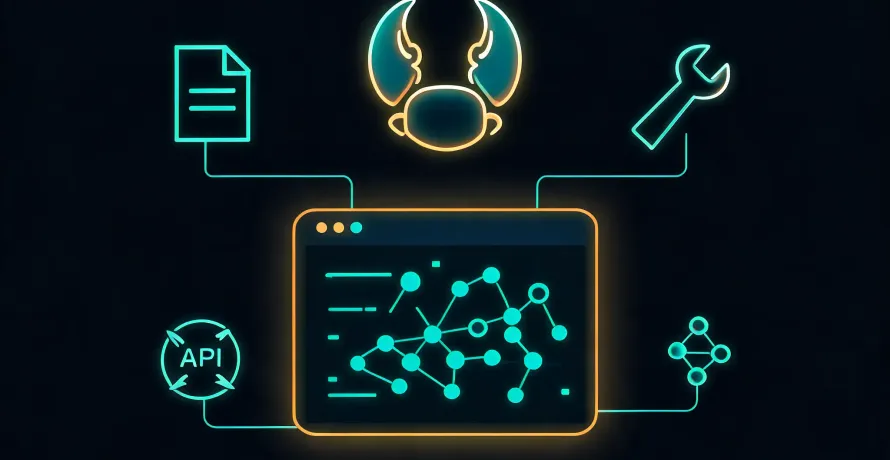
It is a local infinite canvas plugin for Codex, built on tldraw. You can draw freely, annotate, create image placeholders, and then have Codex generate or modify images based on what is visually on the canvas.
This is not another whiteboard tool. It is a bridge that lets your AI programming assistant see what you mean.
1. The Visual Gap in AI Programming
Consider the evolution of AI programming tools:
- Code completion: AI predicts the next line based on context
- Chat-based Q&A: Developers paste code into chat, AI explains, generates, and modifies
- Agent-based: AI enters the project directory, reads files, executes commands, works persistently
Each step made AI deeper at understanding code. But all of them assumed one thing: you communicate with AI through text and code.
Reality is different. Many development scenarios require visual communication.
- You want AI to generate a banner image but cannot describe the composition in words
- You sketch a wireframe and want AI to produce matching UI components
- You mark up a screenshot with change requests and want AI to understand the arrows and circles
- You are brainstorming and want to quickly sketch on a canvas, then have AI generate iterated versions from the sketch
The current workflow? You screenshot → describe the screenshot in text → AI interprets the text → generates a result. Details get lost in the visual-to-text-to-visual translation chain.
Cowart’s approach: let the AI read visual information directly from the canvas, skipping the text relay entirely.
2. What Cowart Actually Is
In one sentence: Cowart is a local infinite canvas that integrates with Codex through MCP tools.
Breaking it down:
- Infinite canvas: Built on tldraw — draw, drag, and annotate freely
- Local execution: The canvas server runs on your own machine, default port 43217
- Data stays local: All canvas data and image assets live in your project’s
canvas/directory, nothing uploaded anywhere - MCP integration: Through Model Context Protocol, Codex can read canvas state, insert images, and save resources
The core workflow:
- Say “Open the Cowart canvas for this project” in Codex
- The canvas opens in your browser
- Create AI image holders on the canvas, or annotate existing images
- Tell Codex what to do — generate new images, revise based on annotations, or save images to the project
3. Three Core Capabilities
Canvas-Driven Image Generation
Traditional AI image generation is purely text-driven: you write a prompt, AI generates an image.
Cowart adds a layer of visual control. You create an AI image holder on the canvas with explicit dimensions and aspect ratio. Then tell Codex to generate an image into that holder. Codex reads the holder’s attributes, generates proportionally, and inserts directly into the canvas.
This means you can plan composition first — where the hero image goes, where product screenshots go, where icons go — then have AI fill them in one by one. Visual planning comes first, AI execution follows.
Annotation-Driven Image Iteration
This is Cowart’s most practical feature.
The flow:
- Place an existing image on the canvas
- Use tldraw’s annotation tools to draw arrows, write text, circle areas
- Screenshot and send to Codex
- Say: “Use my Cowart annotation screenshot to generate a clean revised image beside the original”
Codex reads the annotations — where arrows point, what text says, which parts need modification — and generates a clean revised image next to the original. The original and annotations stay untouched.
This solves the most frustrating problem in AI image iteration: how do you tell the AI exactly what to change in an image?
Before, you had to write paragraphs describing “make the logo in the top-left twice as large, change the background from gray to white, move the text at the bottom up 20 pixels.” Now you just draw it on the image, and the AI understands.
Project-Level Asset Persistence
Cowart’s canvas data is not stored in the plugin repository. It lives in your project’s canvas/ directory:
canvas/pages/<page-id>/cowart-canvas.json
canvas/pages/<page-id>/assets/
The canvas becomes part of the project. Your sketches, annotations, and generated images travel with the code. Switch machines, switch developers — as long as the project is there, the canvas is there.
This is especially valuable for projects that need to preserve design iteration history. You can see every annotation, every version, every revision request.
4. Technical Architecture
Cowart’s architecture follows a “simple but effective” principle:
- Frontend: tldraw infinite canvas running on a local Vite dev server
- Communication: MCP tools let Codex read and write canvas state
- Data layer: JSON plus local filesystem — no database dependency
- Integration: Codex plugin declared via
.codex-plugin/plugin.json
MCP tools include:
cowart:cowart-open-canvas: Open the local canvascowart:cowart-image-gen: Generate images into selected holderscowart:cowart-image-edit: Generate revised images from annotation screenshots
This design makes Cowart both a standalone visual tool and a deeply integrated AI programming aid.
5. Why You Would Want It
You work on projects that need visual communication. UI design, product prototyping, marketing assets, documentation illustrations — these scenarios require visual-level communication with AI. Text description is never as precise as marking directly on an image.
You want more control over AI image generation. Controlling proportions and positions through canvas holders is far more intuitive than prompt engineering. You don’t need to endlessly tweak prompts to get the right image dimensions.
You need to iterate on visual designs quickly. The annotate → screenshot → AI revision flow is much faster than the write-prompt → generate →不满意 → rewrite-prompt → regenerate loop. You express modification intent by drawing an arrow, and AI executes immediately.
Your data is sensitive and you don’t want it uploaded. All canvas data stays local. Image assets stay local. Cowart collects nothing, calls no external services, and never uploads your sketches or annotations.
You’re using Codex for development. Cowart is a native Codex plugin. Install it, use it directly in conversations — no tool switching, no copy-pasting.
6. Installation and Usage
Auto-Install via Codex
Send this to Codex:
请从 https://github.com/zhongerxin/cowart.git 安装 Cowart Codex 插件。
请 clone 仓库到 ~/plugins/cowart,确认 .codex-plugin/plugin.json 存在,
把插件加入 personal marketplace,然后运行 codex plugin add cowart@personal。
安装后请校验插件,并告诉我是否需要开启一个新对话来加载新技能和 MCP 工具。
Manual Installation
mkdir -p ~/plugins
git clone https://github.com/zhongerxin/cowart.git ~/plugins/cowart
cd ~/plugins/cowart
npm install
npm run build
Configure marketplace.json and install:
codex plugin add cowart@personalDaily Use
In Codex, say:
Open the Cowart canvas for this project.The canvas opens in your browser (default http://127.0.0.1:43217/).
Generate an image:
Generate a new image into the selected Cowart AI image holder.Revise an image from annotations:
Use my Cowart annotation screenshot to generate a clean revised image beside the original.7. When You Might Not Need It
- If you only need text-based code generation and modification without visual communication, Codex alone is sufficient
- If you don’t need to iterate on images through annotations, traditional prompt-driven generation may be more straightforward
- If you’re unfamiliar with tldraw, there’s a learning curve for canvas operations
- Cowart is still early (v0.1.3), iterating rapidly, and may lack some advanced features
8. Conclusion
AI programming tools are closing their gaps.
First came code understanding, then project context, then command execution. Now Cowart starts closing the “visual understanding” piece of the puzzle.
It’s not trying to replace your design tools. It’s giving your AI programming assistant the ability to see — and to have a visual conversation with you. You sketch your ideas on the canvas, and AI renders its understanding on the same canvas.
When AI can not only read code but also understand your sketches and annotations, human-AI collaboration takes another leap forward.
That is the value Cowart brings.